This occurs when the TPM module is corrupted or changed, but the computer and user account stay the same.
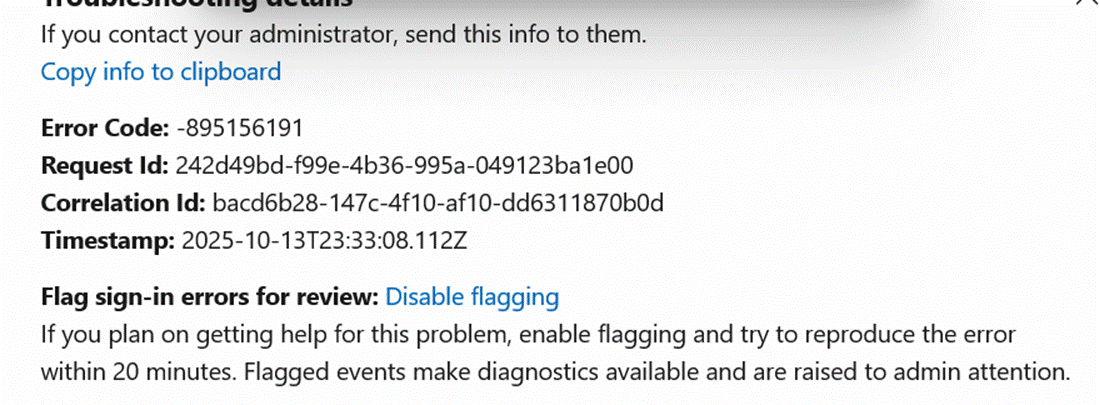
The error will be similar to whats below:
To fix this, please perform the following:
1. Log in to Microsoft365 Admin portal. https://admin.cloud.microsoft/
2. Select Identity.
3. Under Entra ID, select Devices.
4. Select All devices.
5. Search for the computer. e.g.ESRVICSARAHB
6. Delete the computer from the list.
7. Verify it is gone by refreshing the page
8. Navigate to the computer
9. Go to Windows Security
10. Select Device Security
11. Under Security Processor, Select Security processor details
12. Under Status, select Security processor troubleshooting
13. Under Clear TPM, select the dropdown menu.
14. Select any of the options listed.
15. Select Clear TPM
16. Once completed, Restart
17. Wait for PC to reboot
18. Log in to PC and reactivate Office
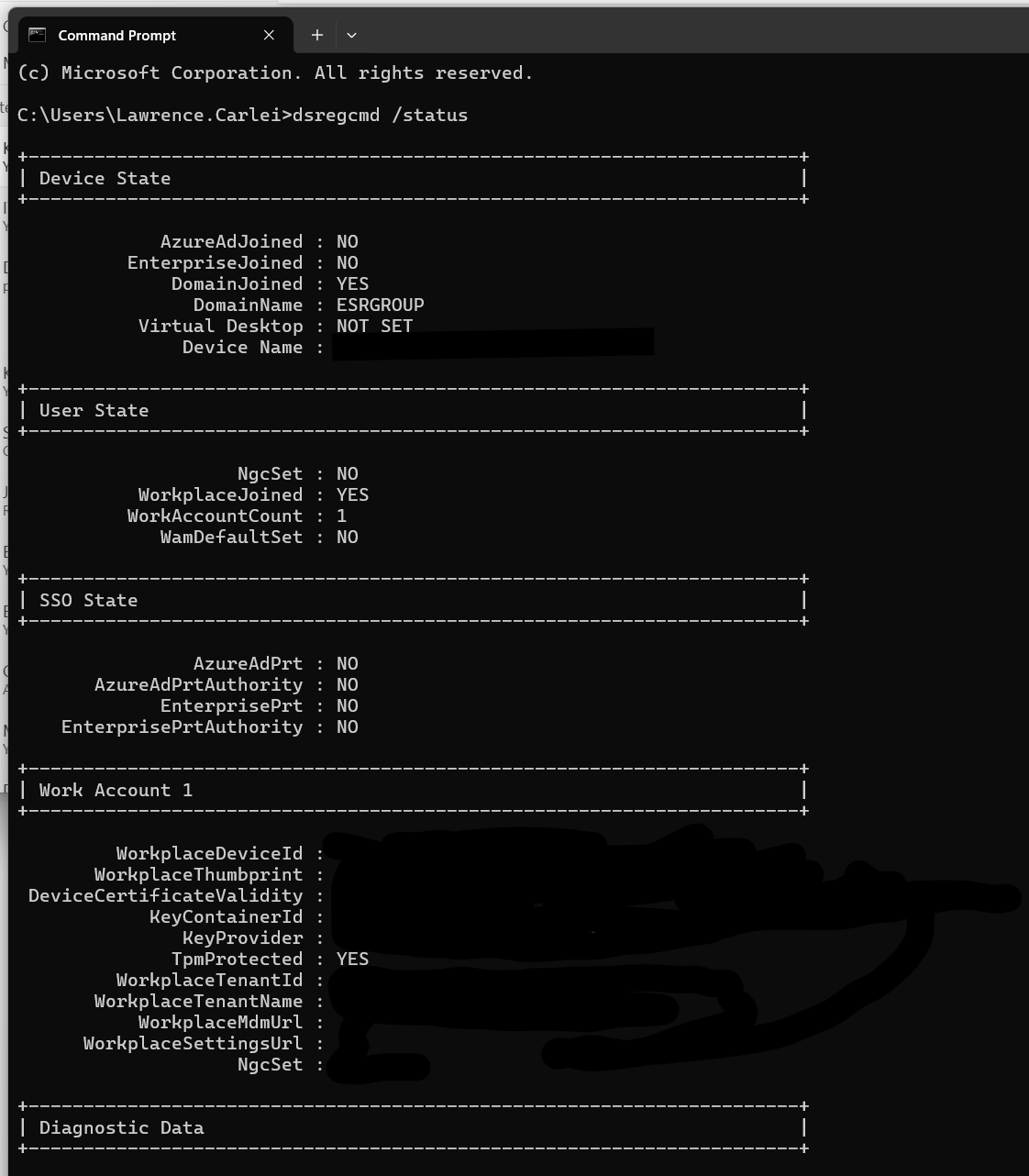
19. Verify it is registered correctly by typing in on CMD: dsregcmd /status
20.